DNS Configuration
Context
Polaris needs all communication encrypted.
To encrypt http traffic, we must use https, which in turn means a domain name that is recognised by a Certificate Authority.
We use Let’s Encrypt to create certificates.
You need domain names that point to each cloud’s Kubernetes ingress. For Kubernetes to point a domain name at a particular pod, you need to prove you own it.
Summary
- Register a domain name (e.g. in AWS Route 53): one per env is enough, as the domain names of the clouds can be subdomains of it
- Set the
*_DOMAIN_NAMEproperties of each cloud - Create the DNS zone of each domain name in its cloud:
afon-cli.sh dns-create-zones <cloud> <stack> - Delegate each domain name to its zone:
afon-cli.sh dns-delegate <cloud> <stack>for a subdomain, else the registrar’s nameservers - Check the delegation:
afon-cli.sh <cloud>-dns-zones - SSL certificates (e.g. via AWS Certificate Manager or Let’s Encrypt)
Domain names and subdomains
Each domain name (<CLOUD>_POLARIS_DOMAIN_NAME, <CLOUD>_JUPYTER_DOMAIN_NAME and the OIDC one, <CLOUD>_OIDC_DOMAIN_NAME else OIDC_DOMAIN_NAME) gets its own DNS zone in the cloud that serves it, named after the domain name. The domain name need not be a registered domain: it can be a subdomain of one, so that a single registered domain per env is enough. With the registered domains emrys1.click and emrys2.click, one per env, and the <cloud>-<tool>.<domain> convention, which follows the stack ids:
| Property | Env 1 | Env 2 |
|---|---|---|
AWS_OIDC_DOMAIN_NAME | aws-oidc.emrys1.click | aws-oidc.emrys2.click |
AWS_POLARIS_DOMAIN_NAME | aws-polaris.emrys1.click | aws-polaris.emrys2.click |
AWS_JUPYTER_DOMAIN_NAME | aws-jupyter.emrys1.click | aws-jupyter.emrys2.click |
AZURE_OIDC_DOMAIN_NAME | azure-oidc.emrys1.click | azure-oidc.emrys2.click |
AZURE_POLARIS_DOMAIN_NAME | azure-polaris.emrys1.click | azure-polaris.emrys2.click |
AZURE_JUPYTER_DOMAIN_NAME | azure-jupyter.emrys1.click | azure-jupyter.emrys2.click |
GCP_OIDC_DOMAIN_NAME | gcp-oidc.emrys1.click | gcp-oidc.emrys2.click |
GCP_POLARIS_DOMAIN_NAME | gcp-polaris.emrys1.click | gcp-polaris.emrys2.click |
GCP_JUPYTER_DOMAIN_NAME | gcp-jupyter.emrys1.click | gcp-jupyter.emrys2.click |
The existing form, one registered domain per domain name, is unchanged and can be mixed with it. Give each cloud its own OIDC domain name (<CLOUD>_OIDC_DOMAIN_NAME) rather than sharing OIDC_DOMAIN_NAME, as a zone of the domain name must be in the cloud that serves it.
Creating the zones and delegating
Two commands do it, the same way on every cloud, for the domain names that a stack serves (those of its Polaris, Jupyter and KeyCloak components, as stacks.yaml and the config decide). The stack is given by its id or its role (identity, catalog or tre):
afon-cli.sh dns-create-zones <aws|azure|gcp> <stack>                # creates the DNS zone of each domain name, unless it exists
afon-cli.sh dns-delegate <aws|azure|gcp> <stack> [--route53]        # shows, or with --route53 writes, the NS records for the parent zone
dns-create-zonescreates a Route 53 hosted zone onaws, an Azure DNS zone inAZURE_RESOURCE_GROUPonazure, and a Cloud DNS managed zone ongcp. Onazure, runazure-createfirst, as it creates the resource group.azure-createandgcp-createdo not create DNS zones. A zone that exists is left as it is, so it is safe to repeat. It shows the nameservers of each zone.dns-delegateshows theNSrecords that delegate each domain name from its parent domain to the zone of the cloud, as zone file lines that any DNS provider accepts, to add to the zone that hosts the parent domain, wherever that is. It is safe to repeat.
--route53 is for a parent domain whose DNS zone is a public Route 53 hosted zone in the current AWS account, and is the authoritative one, ie the registrar’s nameservers are those of that hosted zone, as when the domain is registered in Route 53. It writes the records itself, replacing those of the domain name already there: for each domain name it finds the closest parent domain that is such a hosted zone (emrys1.click for azure-polaris.emrys1.click) and upserts the NS record there. It needs the aws CLI and credentials even when the zones are in Azure or GCP. A domain name with no such parent, eg a registered domain used as it is, is skipped: delegate it at the registrar instead.
What differs between the two forms of domain name is only where the delegation is set, as a zone is only reachable once its parent delegates to it:
- a registered domain (
emryspolaris.click): the registrar’s nameservers are set to those of the zone, see Domain name registration; - a subdomain (
aws-polaris.emrys1.click): anNSrecord namedaws-polarisis added, with the nameservers of the zone, to the DNS zone that hosts the parent domain (emrys1.click), bydns-delegate, or by hand.
Nothing else depends on the registrar or on Route 53: the zone names, the certificates and the A records are the same whichever the parent is, and <cloud>-dns-zones checks the delegation of a subdomain just as it does that of a registered domain.
Note that a hosted zone is a separate billable item in each cloud (e.g. Route 53 charges per zone per month), while registering a domain is a yearly charge, so a subdomain trades one for the other. A wildcard A record in the parent is not a substitute for the delegation: the zone of the domain name must be the authoritative one for the ACM and Let’s Encrypt validations to work.
The TRE whitelist
The notebooks, the Spark master and the Spark driver of a TRE can only resolve the domain names in whitelist.yaml of the config dir (see configuration), so a new domain name must be in it too, or they cannot reach it. The symptom is a Spark or notebook pod failing with UnknownHostException: <domain>: Temporary failure in name resolution, while the domain resolves from anywhere else, eg from the Polaris and KeyCloak pods, which are not restricted.
A whitelist.yaml that an earlier config-updates generated from the deprecated ALLOWED_DOMAINS_CSV lists the domain names spelled out, so it does not follow the *_DOMAIN_NAME properties and still has the old ones after you change them. (config-updates now writes the domain names of the properties as the properties, but never overwrites an existing whitelist.yaml.) The best strategy is to start from the template instead, whose entries are the properties, eg ${AZURE_POLARIS_DOMAIN_NAME}, and to add the other domains that your deployment needs, eg those of a bucket or of another service, to the section of the cloud or to common. Then they follow the properties, as long as you change them in one place.
The policies are part of the stack, so redeploy it for a changed whitelist to take effect.
Instructions
The sections below give, for each cloud, what the commands above do by hand, and its specifics. We assume that you’ve bought your domain name in AWS and want other cloud providers to manage it. If you’ve bought your domain name through other domain registrars (e.g. GoDaddy) the process is similar.
AWS
For AWS, afon-cli.sh dns-create-zones aws <stack> creates a Route 53 hosted zone named after each domain name (AWS_OIDC_DOMAIN_NAME, else OIDC_DOMAIN_NAME, AWS_POLARIS_DOMAIN_NAME and AWS_JUPYTER_DOMAIN_NAME), which must then be delegated to it: by the registrar, wherever the domain was bought, or by dns-delegate for a subdomain. You can check that the zone is there by running:
aws route53 list-hosted-zones-by-name --dns-name $AWS_POLARIS_DOMAIN_NAME --max-items 1
This is sufficient for DNS but if you want to use https, you’ll need to assign a certificate. To request one for each domain name in ACM, validated by a record in its hosted zone, and wait until it is issued, run:
afon-cli.sh aws-issue-cert
(or in the AWS Certificate Manager console Request a certificate for the domain, and press the Create Record in Route 53 button to prove you own it. Note that it might take a few minutes to propagate.)
aws-issue-cert: a domain that already has an issued certificate is skipped, so it is safe to repeat; add --force to request a new one.
There are no properties for the hosted zones or the certificates: when a stack is deployed, it looks up the hosted zone named after each domain name, and the latest ISSUED ACM certificate for exactly that domain name (a wildcard certificate is not matched). The deploy fails when planning, before anything is created, if either is missing.
NOTE: unlike Azure and GCP, AWS does not store the certificate in a secrets manager. There, cert-manager terminates TLS in the cluster and the cached certificate and key are restored into a Kubernetes secret, to avoid the weekly limit of Let’s Encrypt. On AWS the ALB terminates TLS with the ACM certificate, which is free, renews itself and is not secret, being only referred to by its ARN. Looking up the ARN and the zone ID from AWS, rather than keeping copies of them in the config, means they cannot drift from what is in ACM and Route 53, nor be copied wrongly from one env to another. The hosted zones must be in Route 53, whichever registrar the domains are registered with.
Azure
afon-cli.sh dns-create-zones azure <stack> creates a DNS zone for the combination of each domain name and the resource group, which azure-create creates. It is the same as:
az network dns zone create --name $AZURE_POLARIS_DOMAIN_NAME --resource-group $AZURE_RESOURCE_GROUP
This will show a list of nameservers, for example:
{
  "nameServers": [
    "ns1-02.azure-dns.com.",
    "ns2-02.azure-dns.net.",
    "ns3-02.azure-dns.org.",
    "ns4-02.azure-dns.info."
  ]
}
Make a note of these.
If a Kubernetes service is gone but DNS record remains, run the Azure DNS cleanup command:
az network dns record-set a delete \
  --resource-group $AZURE_RESOURCE_GROUP \
  --zone-name $AZURE_POLARIS_DOMAIN_NAME \
  --name "@" \
  --yes
GCP
The DNS zone is created by afon-cli.sh dns-create-zones gcp <stack>, which enables the Cloud DNS API if needed, named after the domain name with its dots replaced by dashes, eg emryspolarisgcp2-click for emryspolarisgcp2.click. Note you might need admin rights to do this.
Once it’s created, you can run:
$ gcloud dns managed-zones describe ${GCP_POLARIS_DOMAIN_NAME//./-} --project=$GCP_PROJECT_ID
Just like for Azure, this will show a list of name servers:
nameServers:
- ns-cloud-c1.googledomains.com.
- ns-cloud-c2.googledomains.com.
- ns-cloud-c3.googledomains.com.
- ns-cloud-c4.googledomains.com.
Again, make a note.
Checking the name servers
To show the name servers of the DNS zone of each domain name of a cloud, ie its Polaris and Jupyter domain names and its OIDC domain name (<CLOUD>_OIDC_DOMAIN_NAME, else OIDC_DOMAIN_NAME), and whether the domain is delegated to them, as a public resolver sees it, run:
afon-cli.sh aws-dns-zones
afon-cli.sh azure-dns-zones
afon-cli.sh gcp-dns-zones
A domain that is not delegated to the zone of the cloud being deployed makes the deploy wait for its DNS record forever, eg when OIDC_DOMAIN_NAME is still delegated to another cloud’s zone. The resolver can be changed with the env var DNS_RESOLVER (default 8.8.8.8); it may still give the old name servers for a while after the delegation has changed.
Domain name registration
Go to the DNS section of your domain registrar.
For AWS, you can use AWS Route 53. Click the domain you’ve bought and in the top right corner, you’ll see a section called Name servers. Click the Actions button and choose Edit name servers.
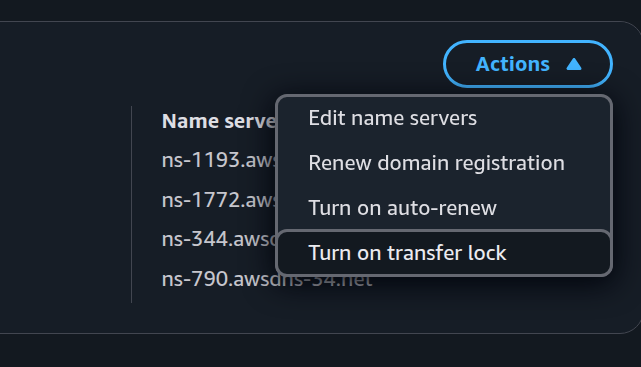
Now add the list of nameservers your cloud provider gave you. They should propagate within about 10 minutes.
For a subdomain (e.g. aws-polaris.emrys1.click) there is nothing to change on the registrar: instead, in the DNS zone of the parent (emrys1.click), wherever it is hosted, add an NS record named after the subdomain with the nameservers of its zone as values. In Route 53 that is Create record in the hosted zone of the parent, record name aws-polaris, type NS, one nameserver per line.
Check DNS propagation
dig A <domain> +short
Consequences
Kubernetes running in the cloud that owns the DNS servers can now ask them to map a domain name to one of its pods.
TLS cert issue and store
Let’s Encrypt limits the number of certificates per week.
The cert should then be issued and stored in a secrets manager - which is necessarily cloud-specific.
Azure
For Azure, the secrets manager is Azure Key Vault.
In config/afon-azure.properties add property AZURE_KEY_VAULT_NAME=<env>-afon-key-vault.
If property AZURE_KEY_VAULT_NAME is not found or blank, the storing of the cert is disabled.
IMPORTANT: the Azure key vault names must be unique globally.
To create key vault, run:
afon-cli.sh azure-keyvault create
It will pick up the name of the key vault and all the other relevant properties from config and create the key vault. The operation is idempotent and will show an existing key vault if already present.
To issue a cert via ACME (Let’s Encrypt) and store it in the key vault:
afon-cli.sh azure-issue-cert acme
This is a one-off operation but can be repeated (idempotently) to renew the cert.
Optionally, Azure has its own CA which supports two issuers:
afon-cli.sh azure-issue-cert {digicert|globalsign}
This is not a free service and the issuer needs to be registered.
Set as properties AZURE_CA_ID/AZURE_CA_PASSWORD in config/secret-azure.properties the issuer credentials.
NOTE: one advantage of using Azure CA is that Key Vault handles renewal on its own schedule going forward.
GCP
For GCP, the secrets manager is Google Secret Manager, scoped to the project GCP_PROJECT_ID.
Unlike Azure, there is no vault to name or create: Secret Manager has no vault object, and its secrets live directly in the project. The two secrets are named after the domain name, <domain-with-dashes>-tls-crt and <domain-with-dashes>-tls-key, and are created on first store. So where Azure is configured with a vault name (AZURE_KEY_VAULT_NAME), GCP is configured with a plain on/off switch.
In config/afon-gcp.properties set GCP_SECRETS_ENABLED=true (the template default). If not true, the restoring of the cached cert on deploy is disabled.
To issue a cert via ACME (Let’s Encrypt) and store it in Secret Manager:
afon-cli.sh gcp-issue-cert acme
The active gcloud account needs the DNS Administrator role (to answer the DNS-01 challenge) and Secret Manager Admin. This is a one-off operation but can be repeated (idempotently) to renew the cert.
To store an existing PEM cert and key, and to inspect or remove the secrets:
afon-cli.sh gcp-secrets store <cert.pem> <key.pem> [<domain-name>]
afon-cli.sh gcp-secrets {show|list|delete}
On deploy, the GcpCloudProvider restores the secrets into the polaris-tls Kubernetes secret before cert-manager asks Let’s Encrypt for a new one; if the secrets are missing it simply falls back to issuing a new cert.